Test your controller for stick drift
Stick drift means a stick reports movement when you are not touching it. This test shows the exact values each stick reports, draws a trace of where it has been, and lets you size a deadzone ring around the centre to see what a game would have to ignore.
Updated
How to test for stick drift
- Connect your PS5 or Xbox controller and press a button so the tester detects it. Use the tab above the 3D view to pick the matching controller.
- Press Clear trails in the Stick trace panel, then put the controller down on a flat surface and leave the sticks alone for a few seconds.
- Read the four live values (LX, LY, RX, RY) under the 3D view and look at where each dot sits. Untouched sticks should read +0.000 or very close to it.
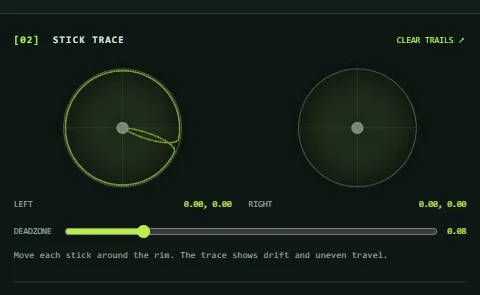
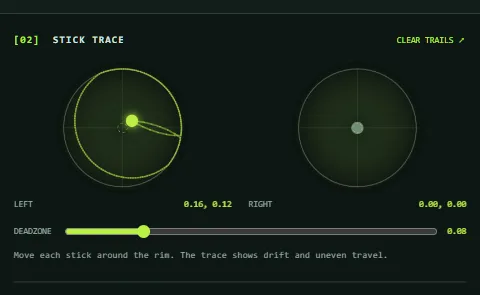
- Rotate each stick slowly around its full rim, then let go. The trace should form a smooth, roughly round outline, and the dot should come back to the centre.
What the results look like
A healthy stick leaves a clean ring and settles in the middle. A drifting stick settles somewhere else, and the readout keeps showing a value away from zero while you are not touching it.
Using the deadzone ring
The deadzone is the area around the centre that a game ignores, so small resting readings don't move your character or camera. The Deadzone slider draws that area as a dashed ring, from 0 to 0.40 of the stick's range, and turns the dot grey while it is inside.
To see how large a deadzone your controller needs, raise the slider until the resting dot sits inside the ring. Games choose their own deadzones, so this is a guide rather than a setting: the slider changes only the drawing on this page, never your controller or any game.
How to read the numbers
- Values near zero, such as a few hundredths, are common and are normally hidden by a game's deadzone. Treat this as a rule of thumb, not a manufacturer specification.
- Readings large enough to leave the deadzone ring while the stick is untouched are the clearest sign of drift.
- A dot that stops short of the rim on one side, or a trace with large gaps or spikes, can point to wear or dirt in the stick mechanism.
- If only one stick misbehaves, the fault is in that stick. Drift on both at once is more often a connection or driver problem, so test with another cable or port.
Why the browser may show less than a game
The tester shows the values your browser receives after the operating system, driver and any utilities have processed them. Some utilities, such as Steam Input, can apply a deadzone of their own, which hides small drift from the browser. If you see no drift here but a game shows it, check the controller's settings in that utility.
What to do if a stick drifts
- Clean around the base of the stick. Compressed air is a common first step, and dust or grit can cause false readings.
- Raise the deadzone in the game's settings so it ignores the resting value.
- If the controller is under warranty, ask the manufacturer for a repair or replacement.
- Stick modules can be replaced by a repair service when the controller is out of warranty.
Connection problems can mimic drift. If the values jump around or the controller disconnects, read the controller not detected guide. To test the other controls, use the button and trigger test.
Frequently asked questions
How do I test my controller for stick drift?
Connect it, open the tester, press Clear trails and leave the sticks untouched. Read the LX, LY, RX and RY values and watch where the dots rest. Then rotate each stick around its rim and let go to check that it returns to the centre.
What counts as stick drift?
Drift is a stick reporting movement while untouched. Small values a game hides with its deadzone are common; drift is when the resting value is large enough to move the character or camera in a game.
Does the deadzone slider change my controller?
No. It only draws a ring on this page and greys the dot inside it, so you can see how large a deadzone your controller would need. Games and utilities set their own deadzones.
Why does only one of my sticks drift?
Each stick has its own mechanism, so wear or dirt affects them separately. If both sticks read off-centre, test with a different cable or port, since a connection or driver fault can affect both.
Does this work for PS5 and Xbox controllers?
Yes. Pick the matching tab above the 3D view. The stick values and the trace work the same way for both.